

Calls and records
The table at the top of the tab has two views:
Per call
Every dial is listed as soon as it is placed.
Filters: search by case or number, call status, a Calls from / Calls until date range, and Recorded only.
Per sample record

Filters: search, All time zones, All states, and Include records not called.
Analysis panels
Below the table, the Results tab shows the study’s reporting panels. Each has a Download button for its figures.AAPOR outcome table (worked sample)
Every worked record placed in an AAPOR outcome bucket, with Code, Label, Count and Share of worked, plus the total. The unknown-eligibility model shows how records with unknown eligibility are treated when the rates are worked out; it comes from the coding standard shown on the Setup tab. If some records could not be placed in a bucket, their number is shown.Response, cooperation and contact
All rates follow the AAPOR standard definitions. RR3 is the headline response rate.Cost reconciliation
Cost by disposition splits the cost by call outcome (Outcome, Calls, Cost, Share).
Sample accounting
Cleaned sample, worked sample, sample coverage (worked over cleaned), yield (completes over worked), records in progress, records used in pre-test (excluded) and unused records.Achieved versus planned
Achieved against the distribution targets set in step 5. A deviation of 10 percent or more is highlighted.Operational, cost and technical-health reports
Downloadable reports such as the full per-call log, calls log, dispositions, response rates, AAPOR outcomes, cost reconciliation, cost by disposition, sample accounting and targets by stratum. A file with more rows than the download limit cannot be downloaded from here; use the export instead.Settings versions
Settings are sealed when the campaign launches. If you edit settings while the study is stopped and then resume, a new settings version is adopted. A notice on the Results tab tells you which version was in force for which calls, and the Settings column on each call shows it. The full list of versions, who adopted them and their effects is in Settings history on the Setup tab.Export data
Select Export in the toolbar to export the entire study.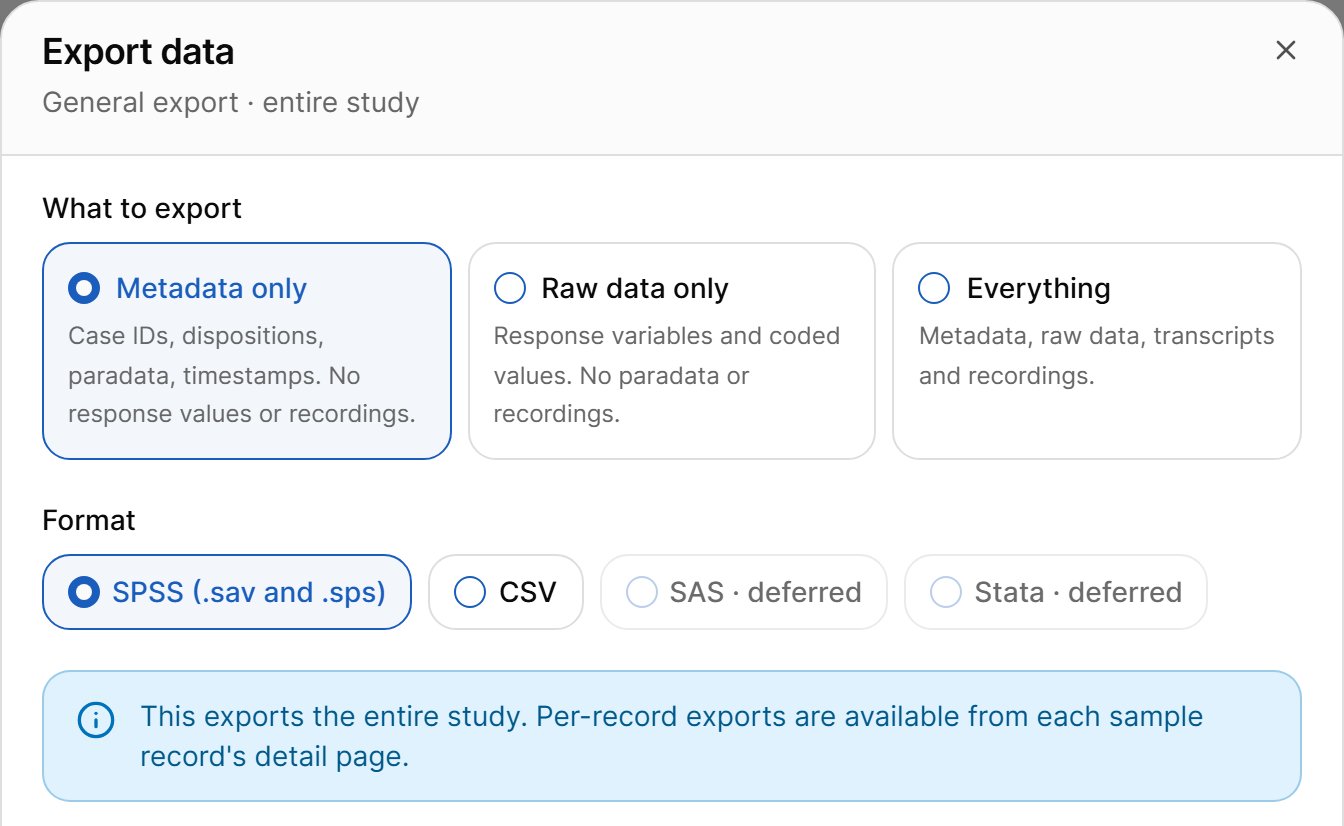
1
Choose what to export
- Metadata only: case IDs, dispositions, paradata, timestamps. No response values or recordings.
- Raw data only: response variables and coded values. No paradata or recordings.
- Everything: metadata, raw data, transcripts and recordings.
2
Choose the format
- Metadata and raw data: SPSS (.sav and .sps) or CSV. SAS and Stata are listed but not available yet.
- Everything: ZIP archive.
3
Choose which run
Production run, or one sub-sample run that has data. Pre-test runs are exported from their own page.
4
Generate or request the export
Metadata and raw data are generated and downloaded. An Everything archive is built in the background and emailed to you when it is ready.
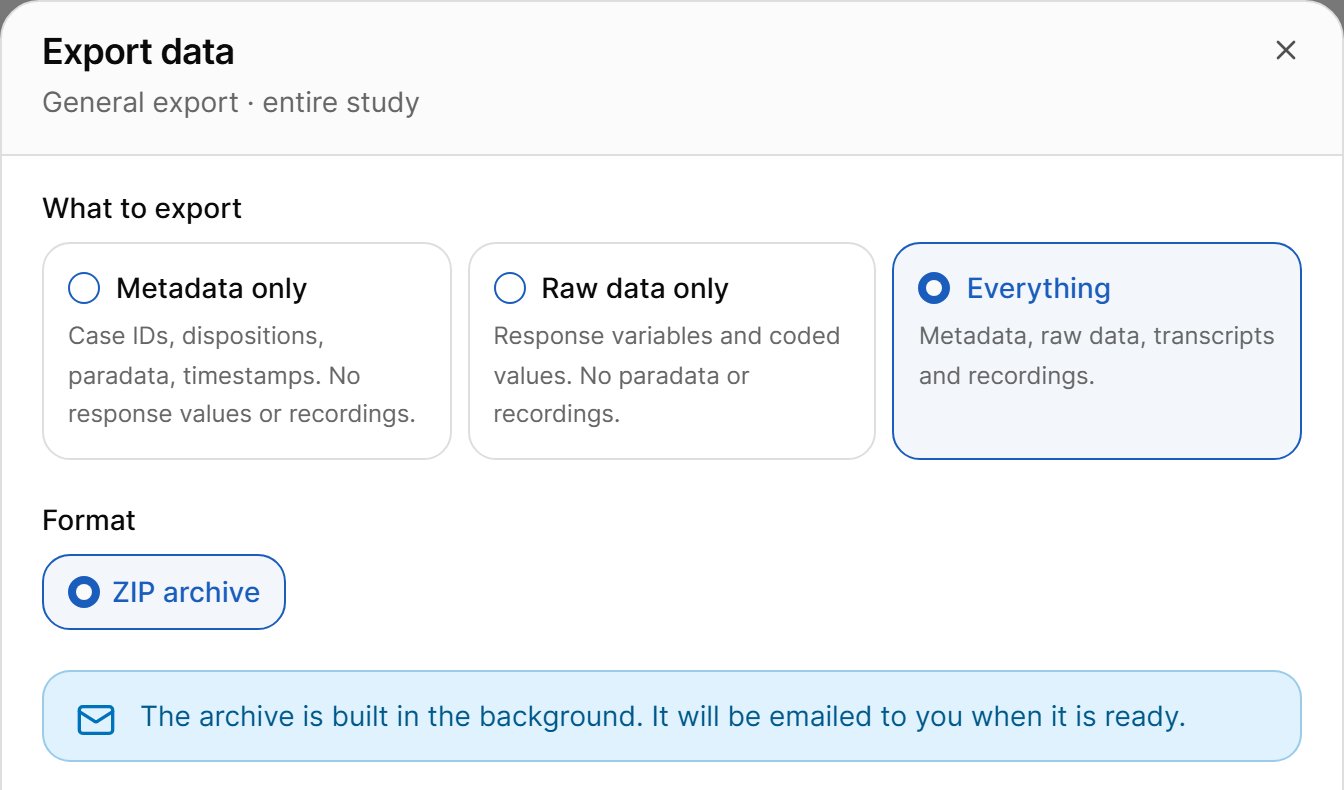
This export covers the whole study. To export one record, use Export record on its sample record page.