

Open Team Collaboration
In the editor toolbar, select Team. The Team collaboration dialog opens.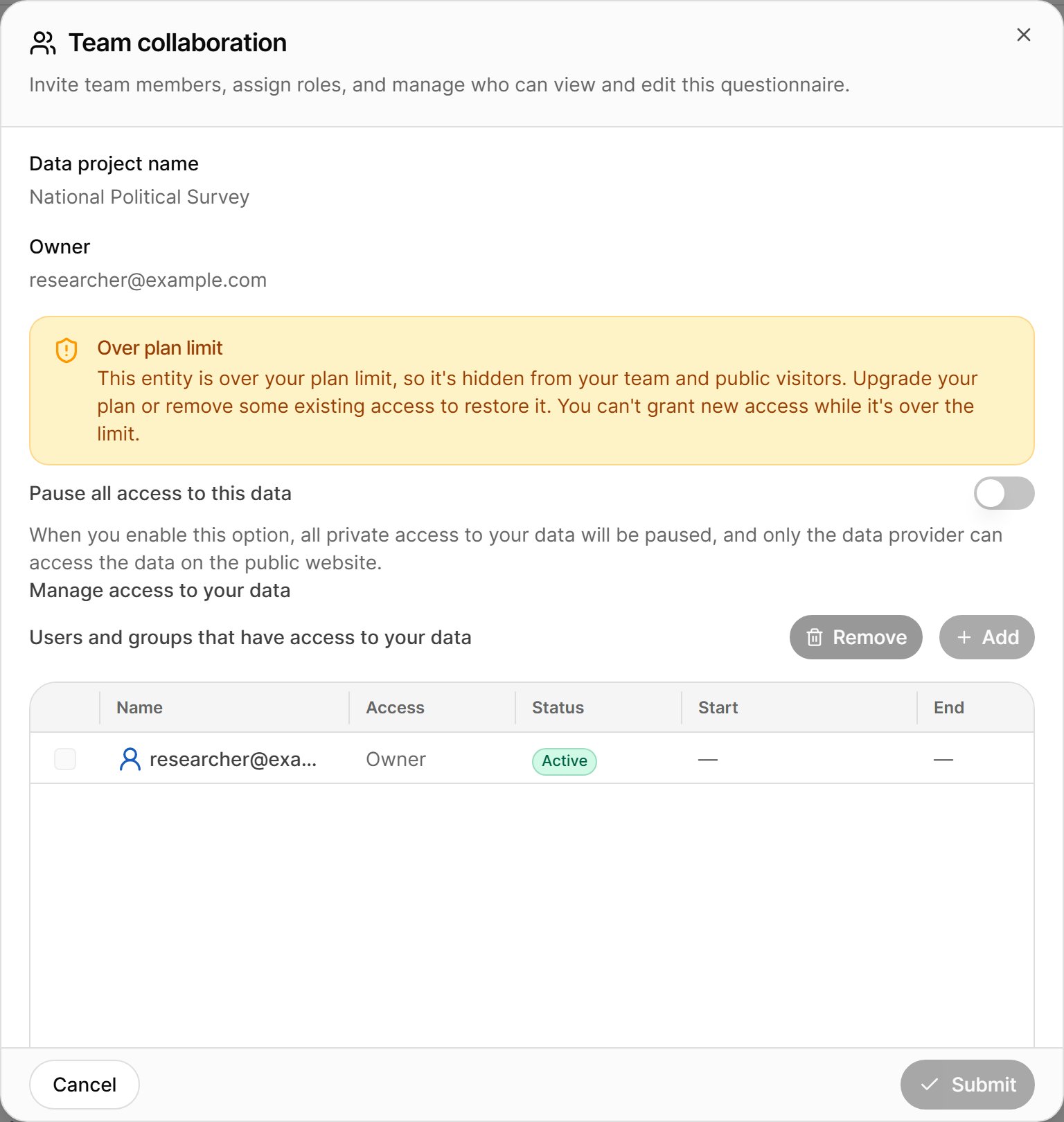
Team is available to people who can edit the questionnaire. It stays available on locked and published versions, because collaborators are not part of the questionnaire content.
What the Dialog Shows
Give Someone Access
1
Select Add
In Manage access to your data, select Add.
2
Choose people or groups
Select the users or user groups to give access to, choose the access level, and optionally set start and end dates.
3
Save
Confirm the grant, then select Submit in the Team collaboration dialog.
Over Plan Limit
If the questionnaire is marked Over plan limit, the dialog shows a warning. The questionnaire is hidden from your team and from public visitors, and you can’t grant new access until you upgrade your plan or remove some existing access.Other Places to Manage Access
- Questionnaire list — the Organizational access and Change public access columns open the same access settings directly from the list. See Questionnaire List.
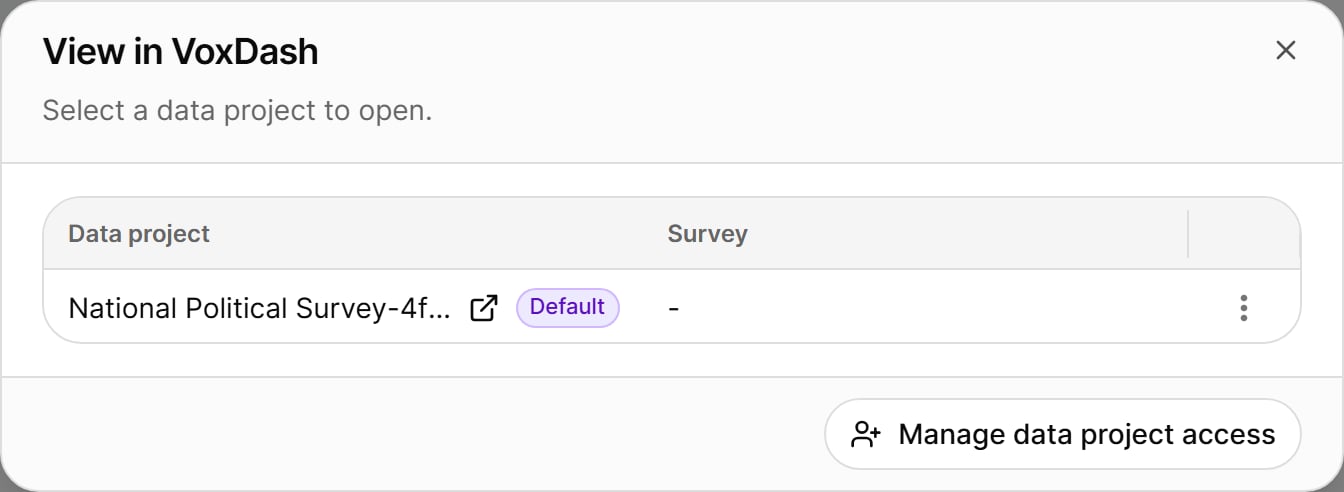
- Data Project Access — the row menu in the questionnaire list, and View in VoxDash in the editor, show the data projects linked to the questionnaire. From there, select Manage data project access to change who can see the collected data.
- Share dialog — control who can open a preview or test link. See Share and Test Links.