

Before You Begin
Only questionnaire versions with the status Published for AI-CATI can be bound. If your questionnaire is missing from the list:- Open it in the Questionnaire Builder.
- Publish the version, then publish it for AI-CATI. See Publishing a Questionnaire for AI CATI.
- Return to this step and select it.
Selecting a Questionnaire
When no questionnaire is bound yet, the step shows Select a questionnaire to begin. Select Select questionnaire to open the picker.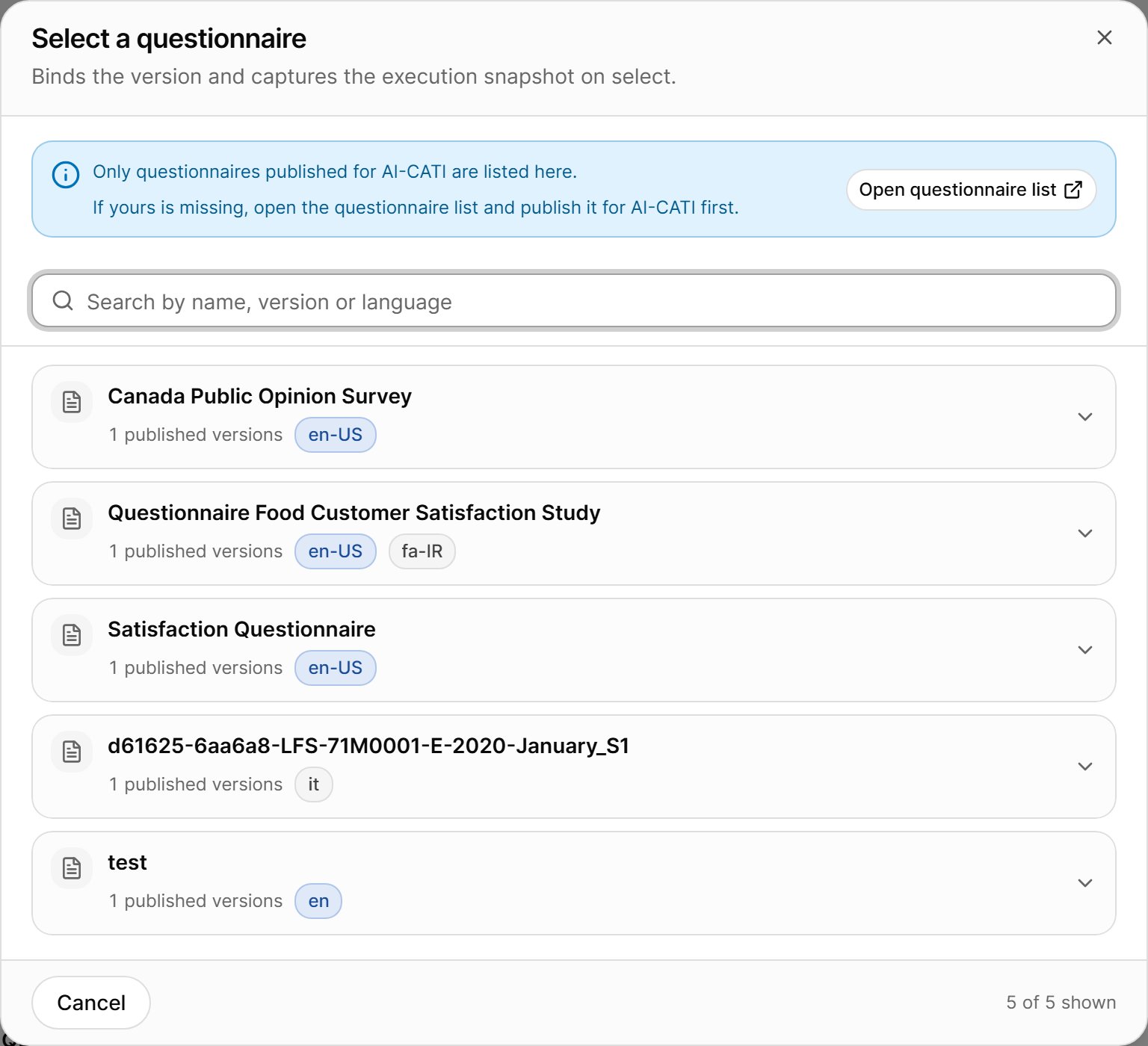
- Search by name, version or language.
- Each questionnaire shows how many versions are published for AI-CATI and its languages. Expand a questionnaire to see its versions, each with the number of questions, the estimated length of interview (LOI) and the publish date.
- Select Select on a version to bind it. The bound version shows Currently bound; other versions offer Re-bind.
- Open questionnaire list opens the Questionnaire Builder in a new tab.
A version can be bound only if at least one of its languages is supported for AI interviewing. Versions without a supported language are disabled in the picker.
Bound Questionnaire
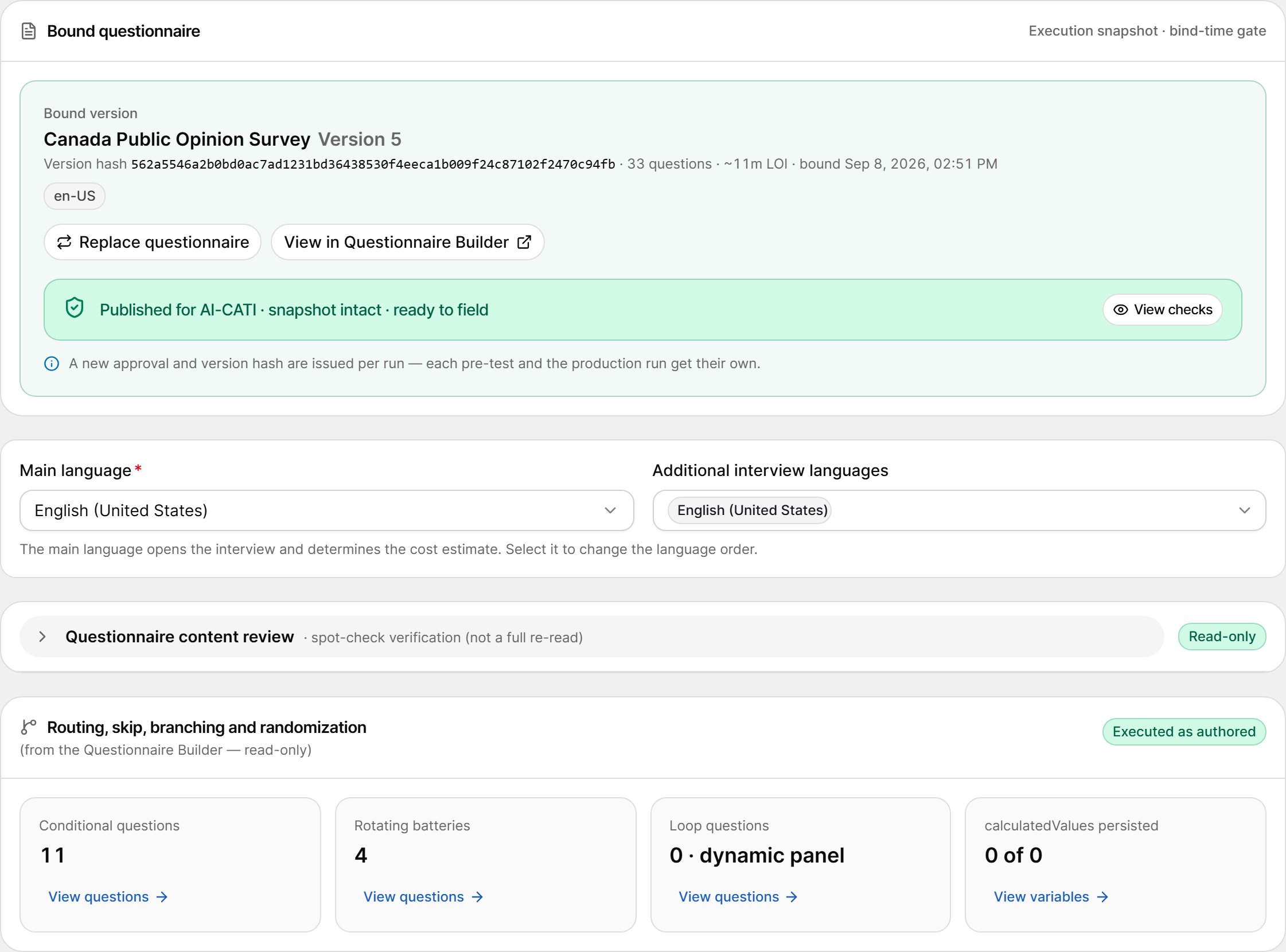
After binding, the Bound questionnaire card shows the questionnaire name and version, the version hash, the number of questions, the estimated LOI, the questionnaire languages and when it was bound.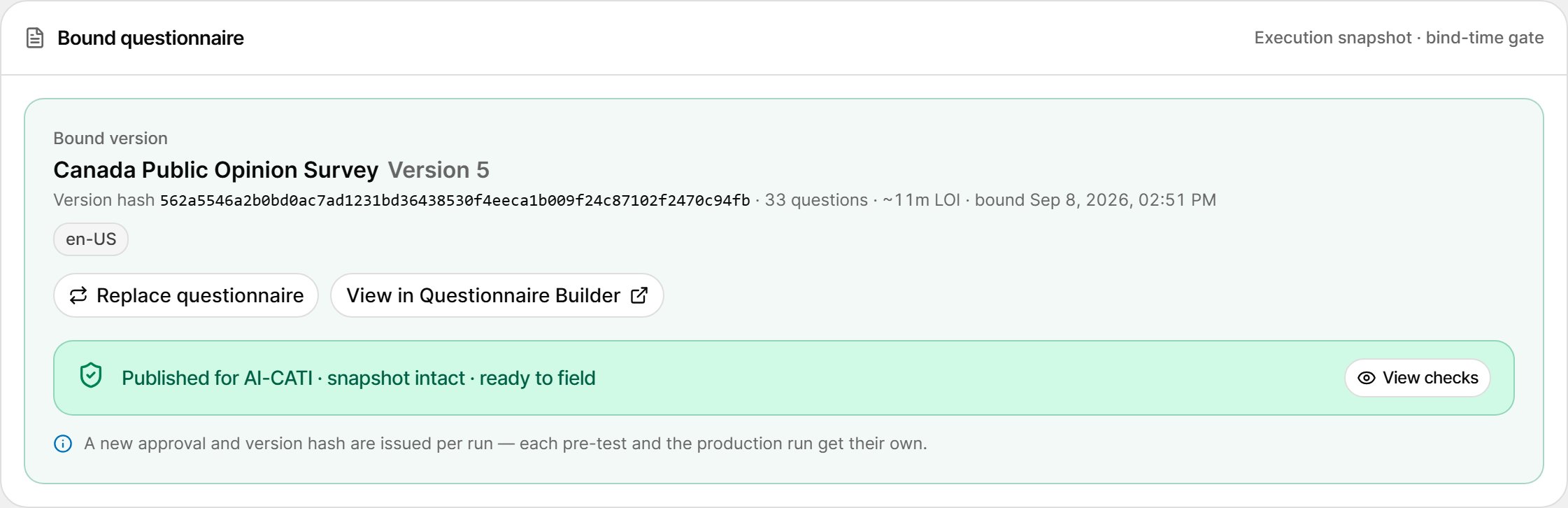
- Replace questionnaire — bind a different questionnaire or version.
- View in Questionnaire Builder — open the bound version in the Questionnaire Builder.
Bind-Time Gate
When a version is bound, VoxDash checks that the AI interviewer can execute it. When every check passes, the card reads Published for AI-CATI · snapshot intact · ready to field. Select View checks to see each check.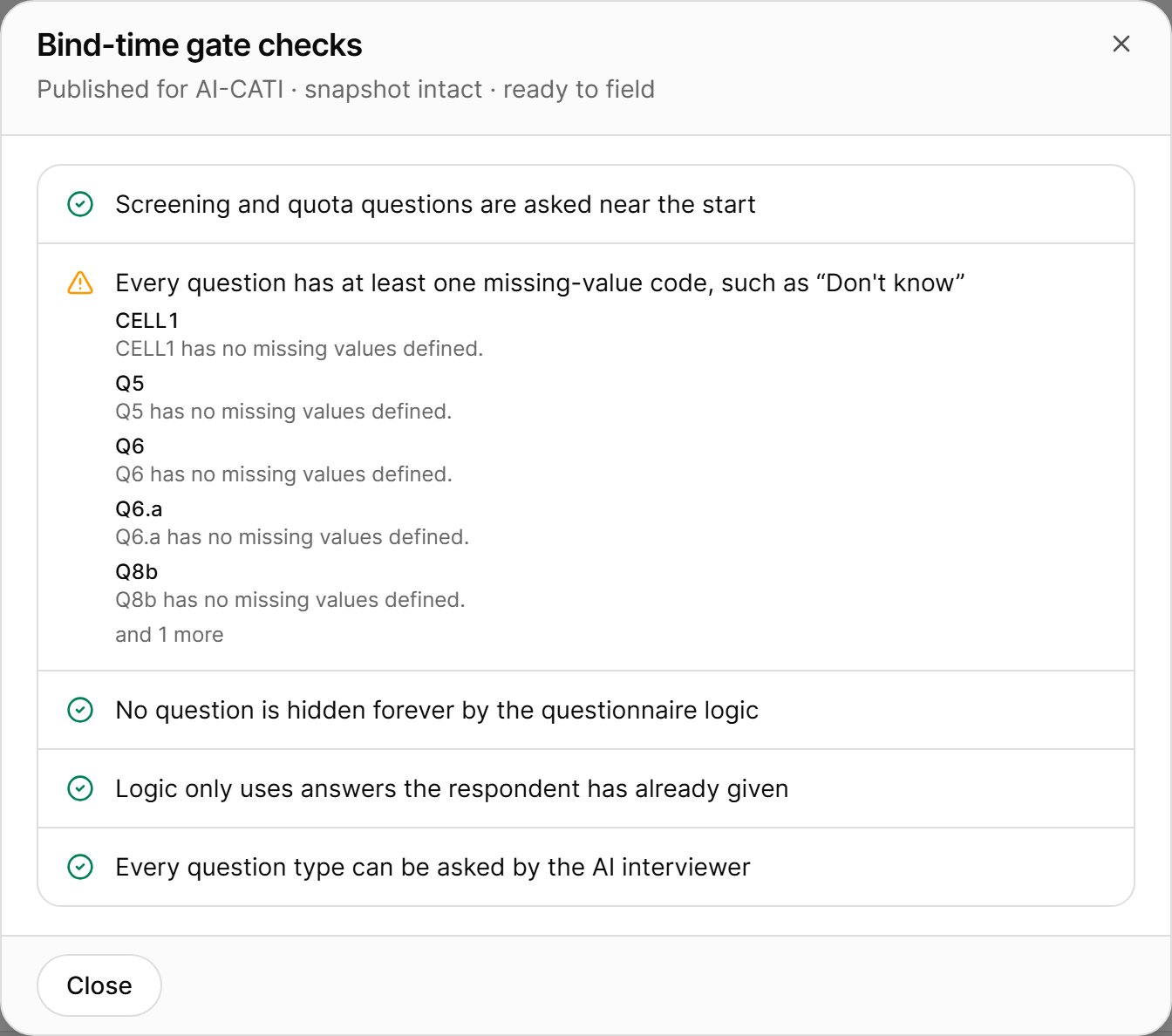
A check marked with a warning lists the affected questions but does not block you.
If a check fails, the card reads Bind-time gate blocked · N failing checks, and you cannot continue. To fix it:
1
Open the questionnaire
Select Fix in Builder to open the questionnaire in the Questionnaire Builder.
2
Fix each failing check
Correct the questions listed under each failing check.
3
Publish a new version
Publish the corrected questionnaire as a new version, and publish it for AI-CATI.
4
Re-select it here
Return to this step and bind the new version (or select Re-check).
A new approval and version hash are issued per run — each pre-test and the production run get their own.
Replacing the Questionnaire
Selecting Replace questionnaire first asks you to confirm: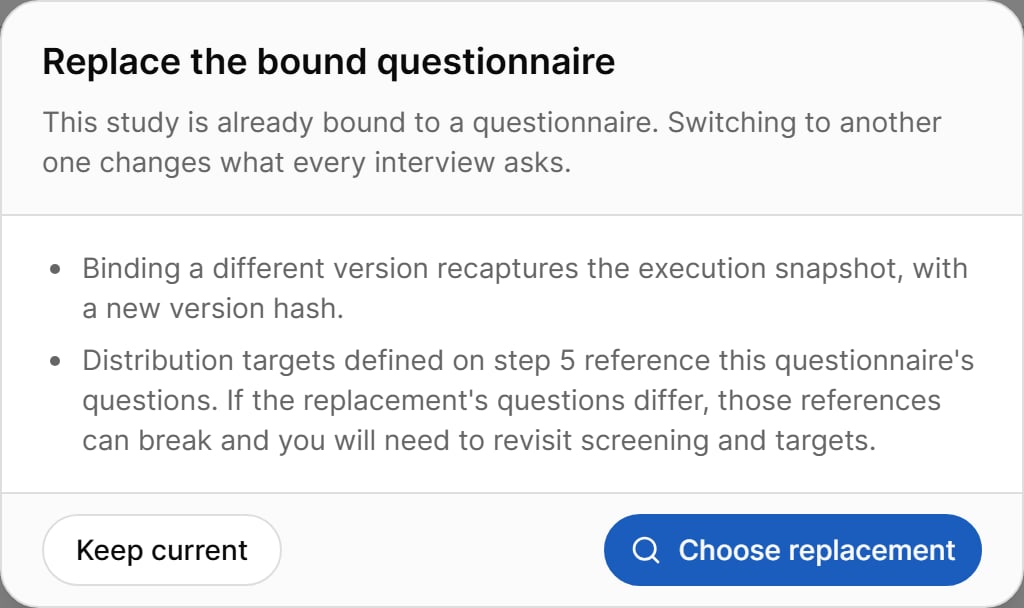
- Binding a different version recaptures the execution snapshot, with a new version hash.
- Distribution targets defined in step 5 refer to this questionnaire’s questions. If the new questionnaire’s questions differ, those targets can break and must be revisited.
Interview Languages
The languages offered come from the bound questionnaire. The AI voice and default scripts in step 3 are listed for the main language.
Questionnaire Content Review
Questionnaire content review is a read-only spot-check of what the AI interviewer will read. Expand the section to see one row per question: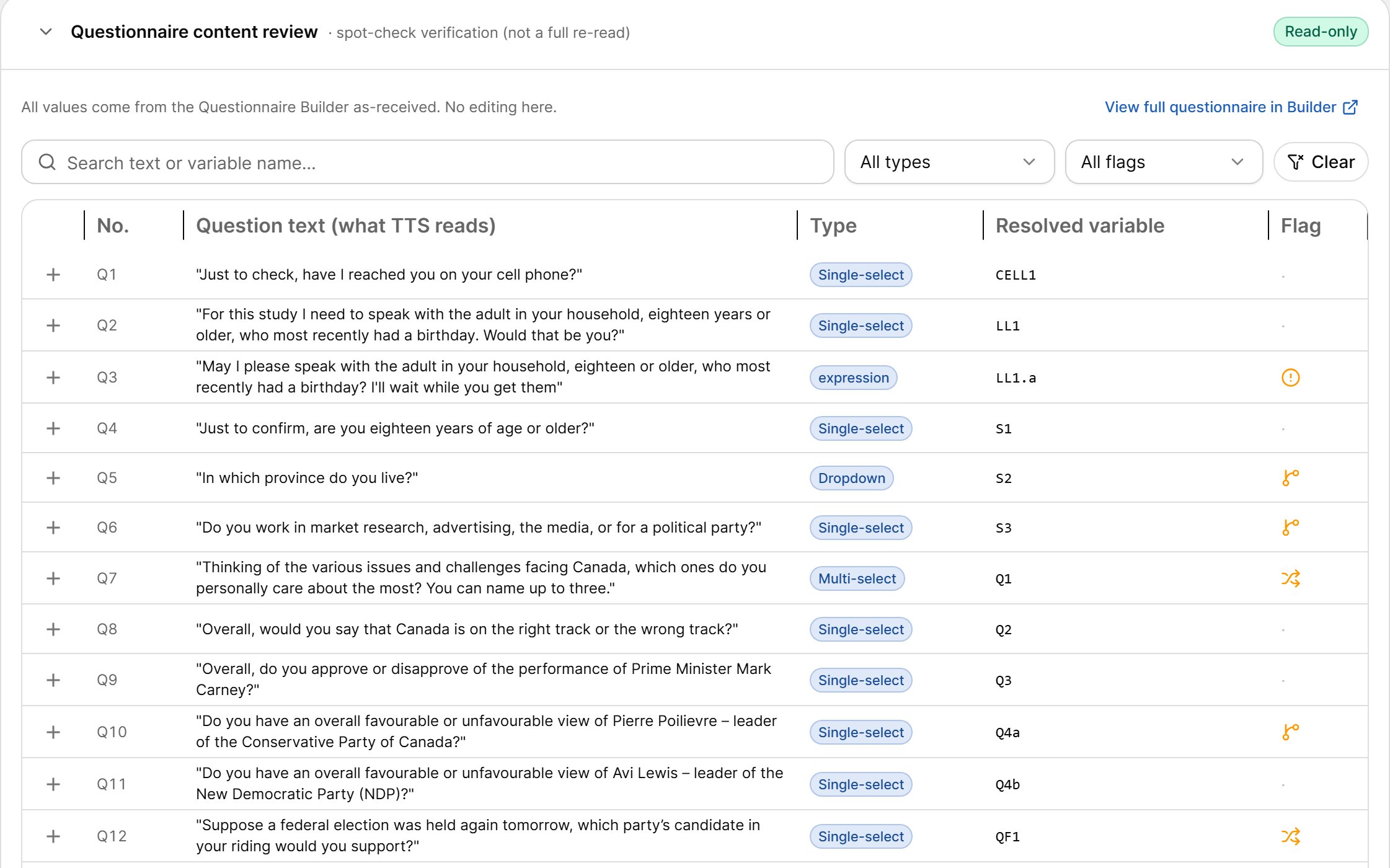
Select a question to see its details: response options and codes, missing-value coding, SPSS format, measurement level, randomization, loop context and open-end capture rules. Derived values show their formula — they are computed from other answers and stored with the interview, but never asked.
To change anything here, edit the questionnaire in the Questionnaire Builder, publish a new version for AI-CATI and re-bind it.
Routing Summary
The Routing, skip, branching and randomization card summarizes the logic the AI interviewer executes exactly as authored:
Select View questions or View variables on a tile to list the items.
Completing the Step
Step 2 is complete when a questionnaire is bound and has a main interview language. Continue is blocked when:
Next: Step 3 · AI Interview.