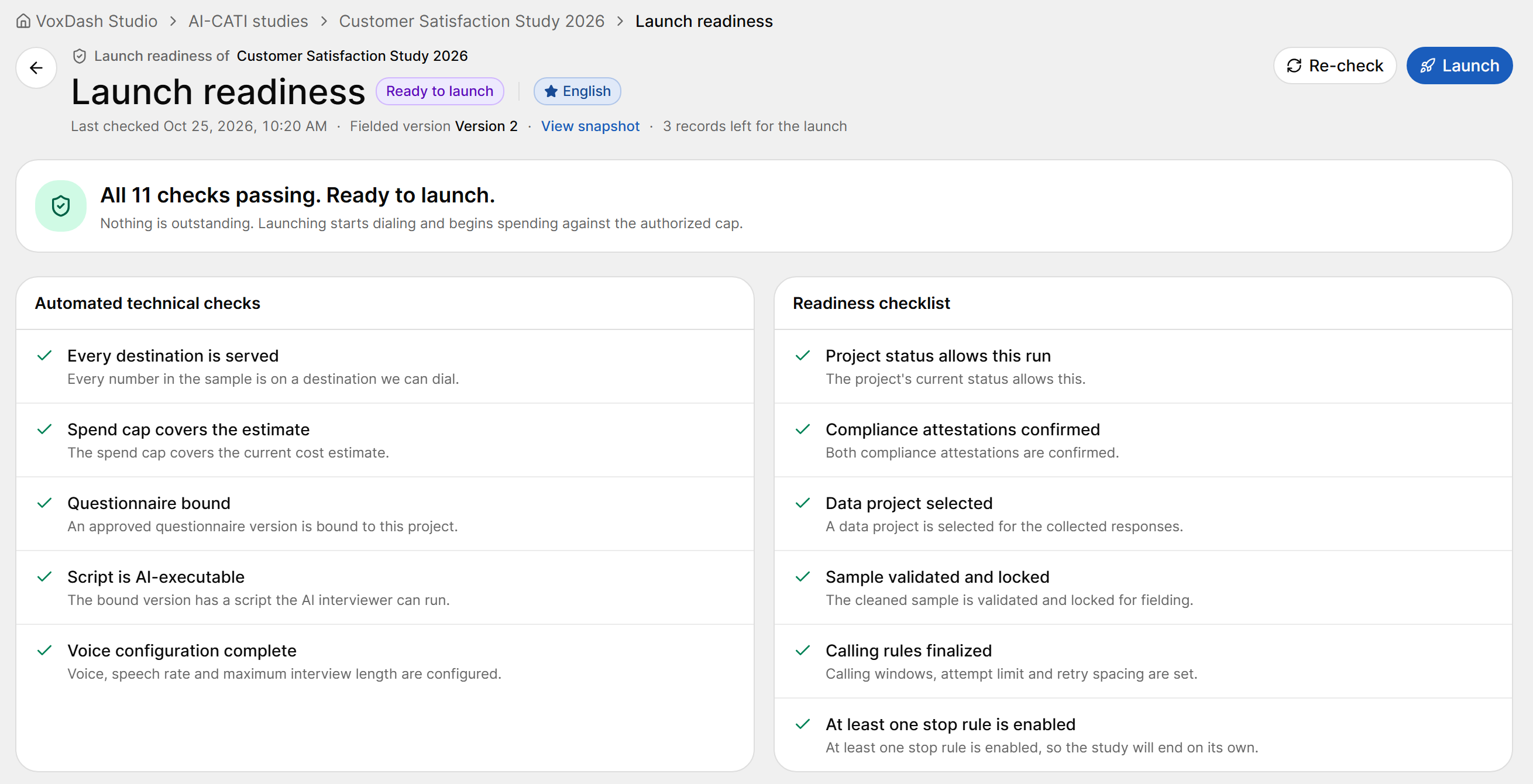
Open the Launch Dialog
The Launch dialog opens:- automatically on a study that is Ready to launch, and right after you finish setup;
- when you select Launch in the study page header.
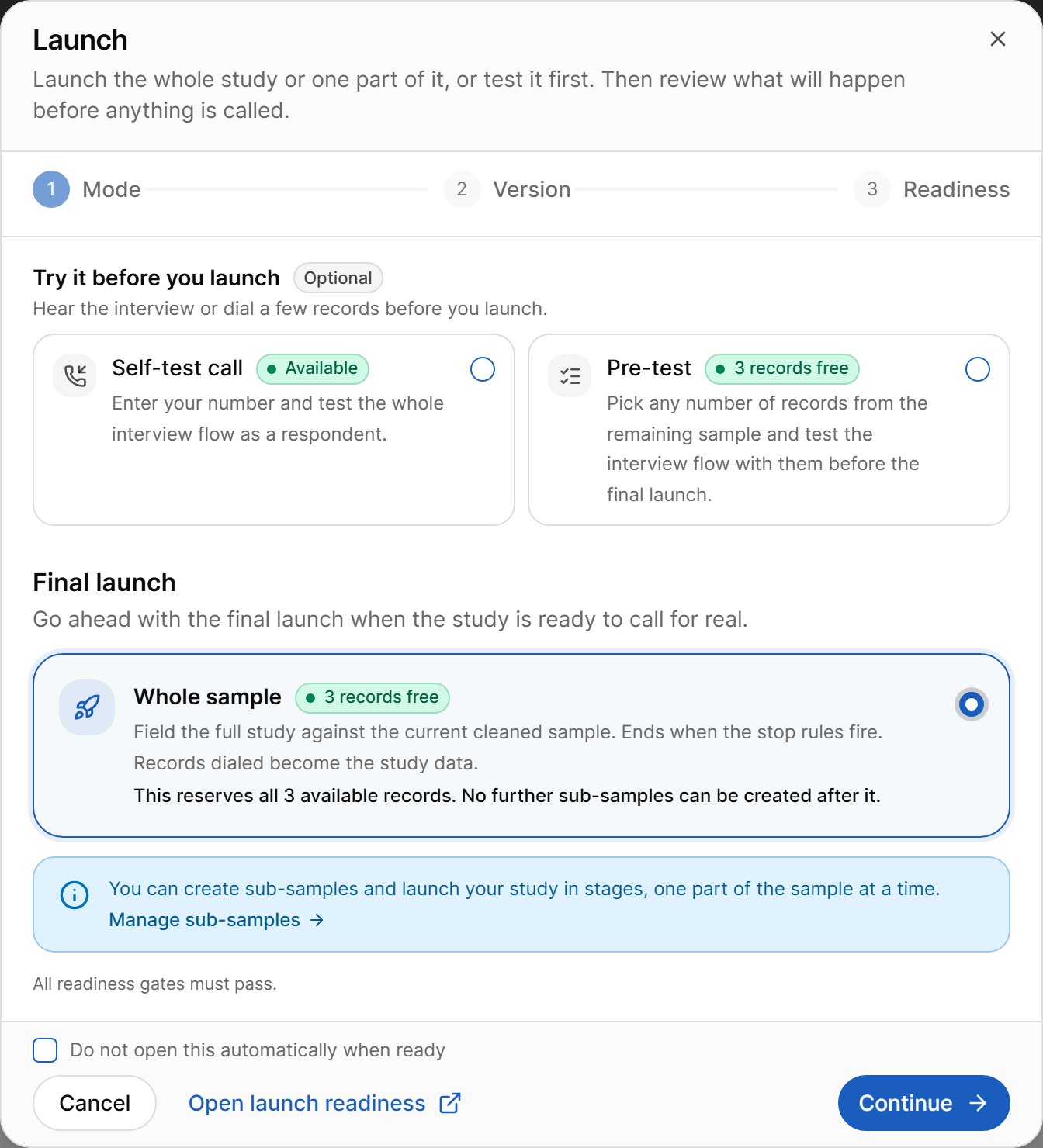
Step 1 · Mode
Try It Before You Launch (Optional)
The badge on each card shows whether it is available and how many records are free. A pre-test is unavailable when no free sample is left or another pre-test is dialing. See Tests: Pre-tests and Self-tests.
Final Launch
All readiness checks must pass before a final launch.
Step 2 · Version
Shows the questionnaire version that will be fielded — the one bound in Step 2. To use another version, change it there.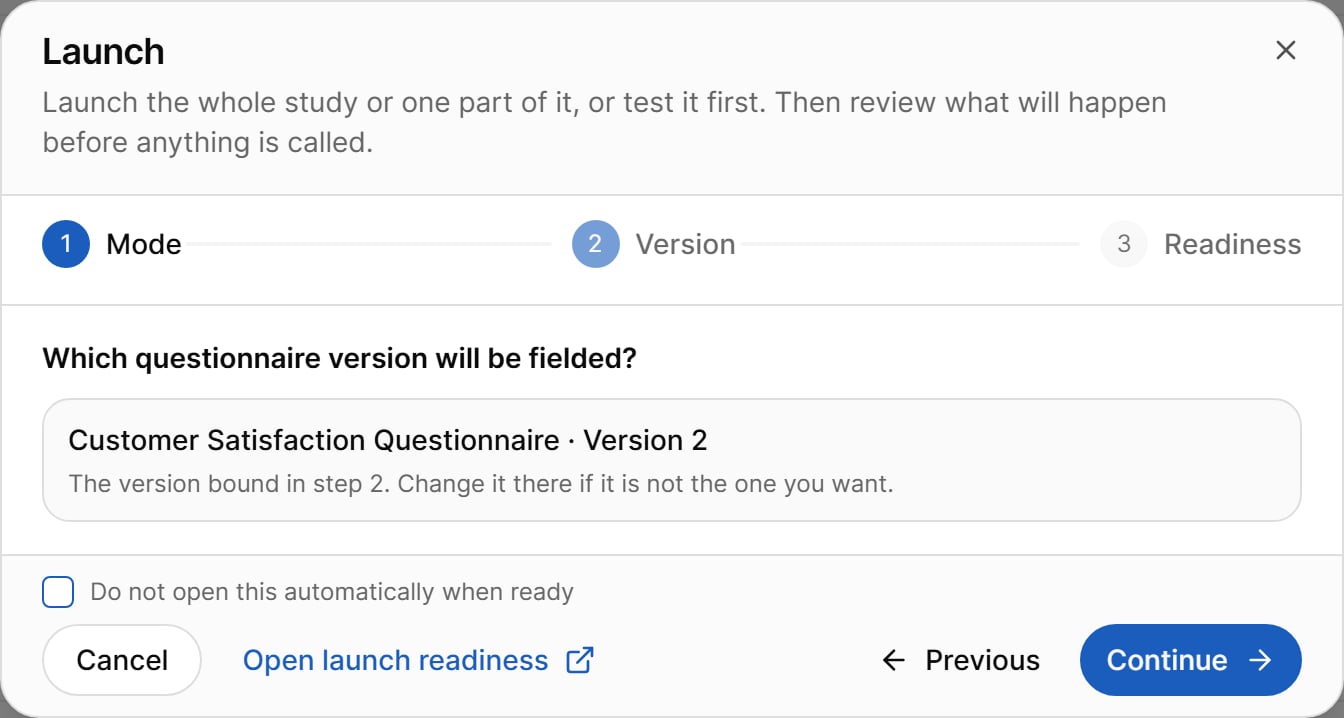
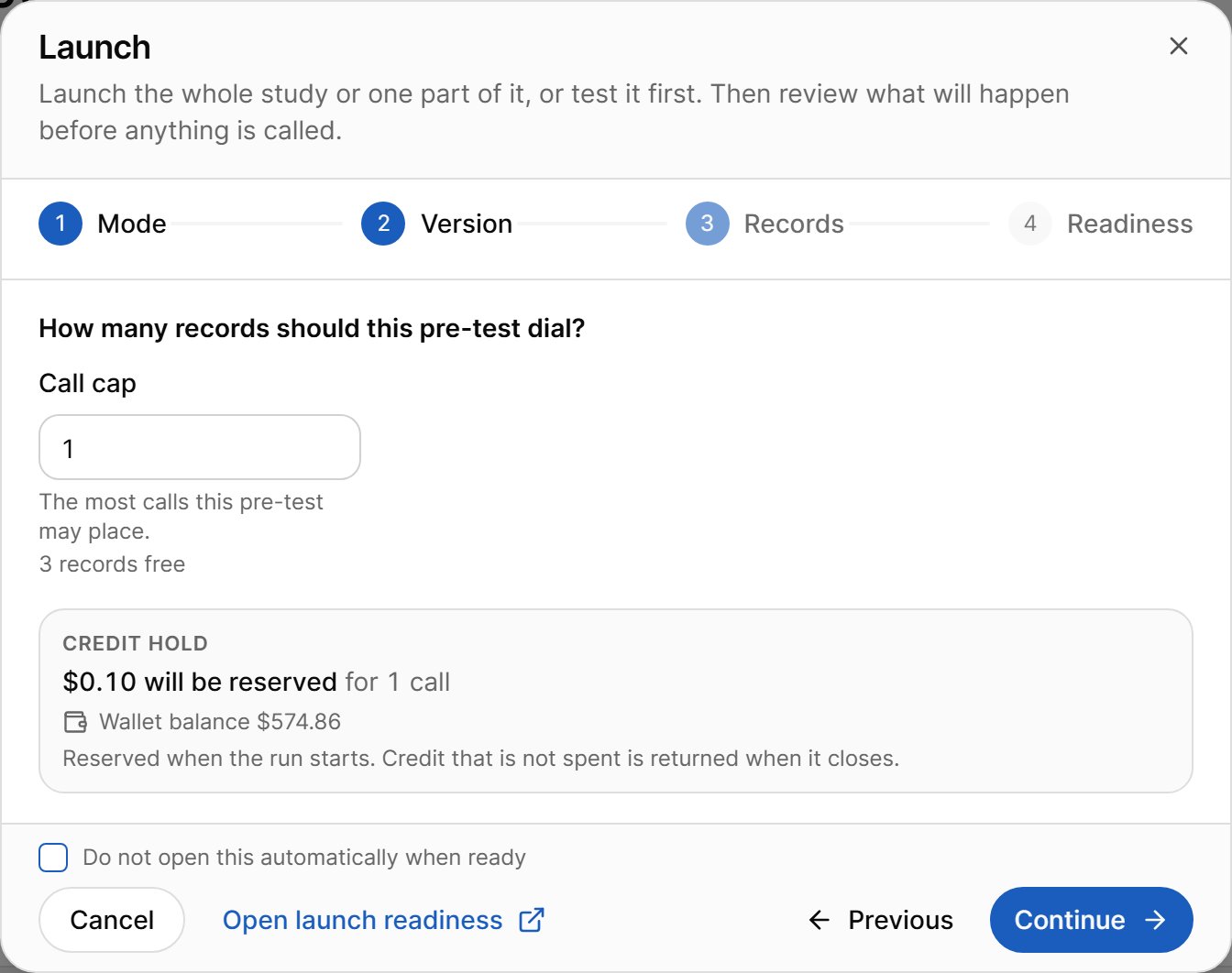
Step 3 · Records (Pre-test Only)
For a pre-test, set the Call cap: the most calls the pre-test may place.- Minimum 1; maximum is the number of free records.
- A warning appears for a large pre-test — more than 100 records, or more than 10% of the cleaned sample.
- The Credit hold shows how much will be reserved for the pre-test.
Final Step · Readiness
The last step shows what will happen before anything is called.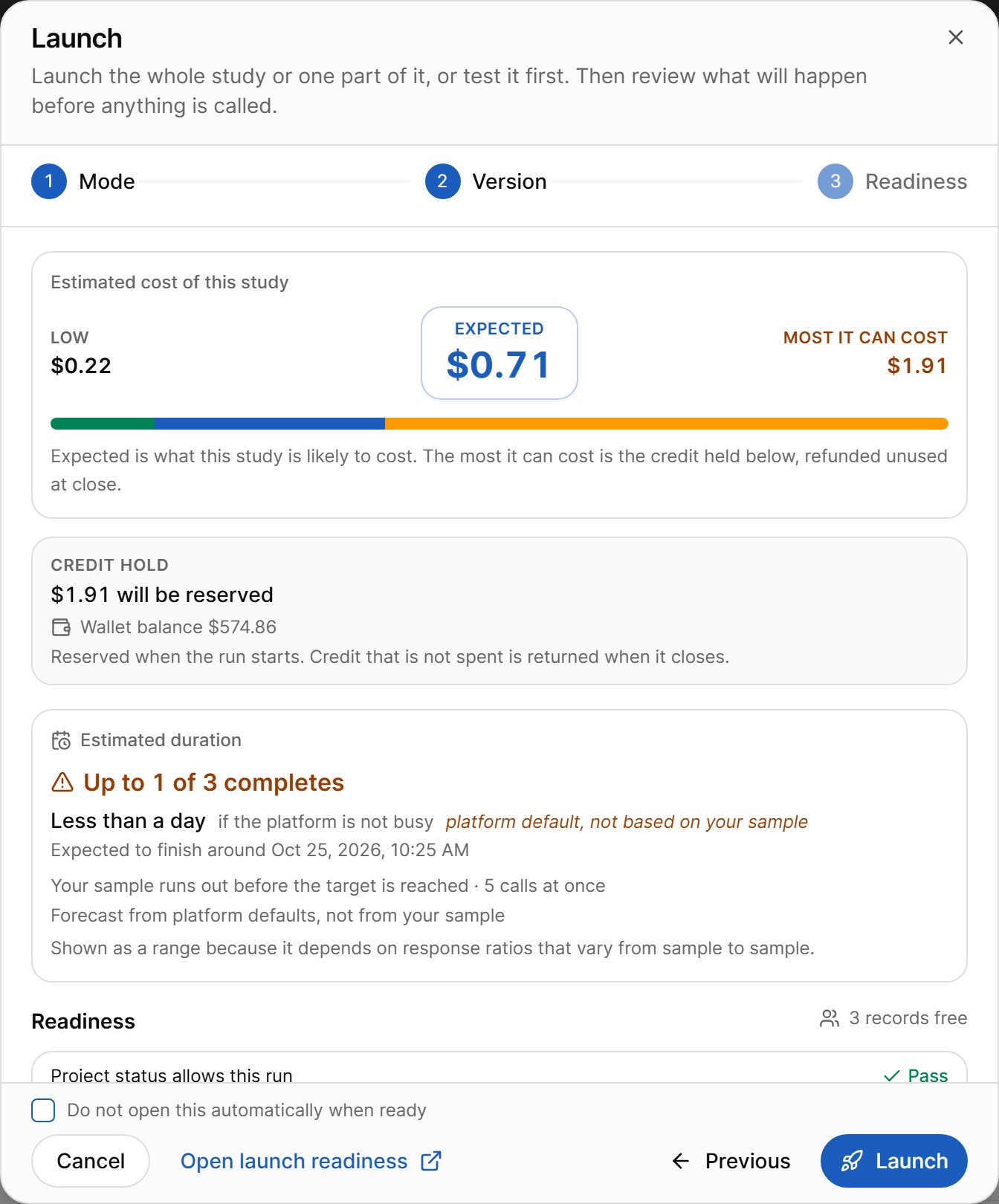
- A failing check shows Fix in step N and blocks the launch (“N readiness checks are blocking”).
- Warnings and Not measured checks do not block.
- A pre-test runs a lighter set of checks.
Scheduled Launch
If you scheduled a start date in Step 1, launching puts the study in Scheduled status. Dialing waits until the start time. While scheduled, you can Change start (pick a new date and time, or Start now) from the study page.Launch Readiness Page
Select Open launch readiness in the dialog, or open the readiness report from the study’s actions menu, to see the full report.